
Your face on screen
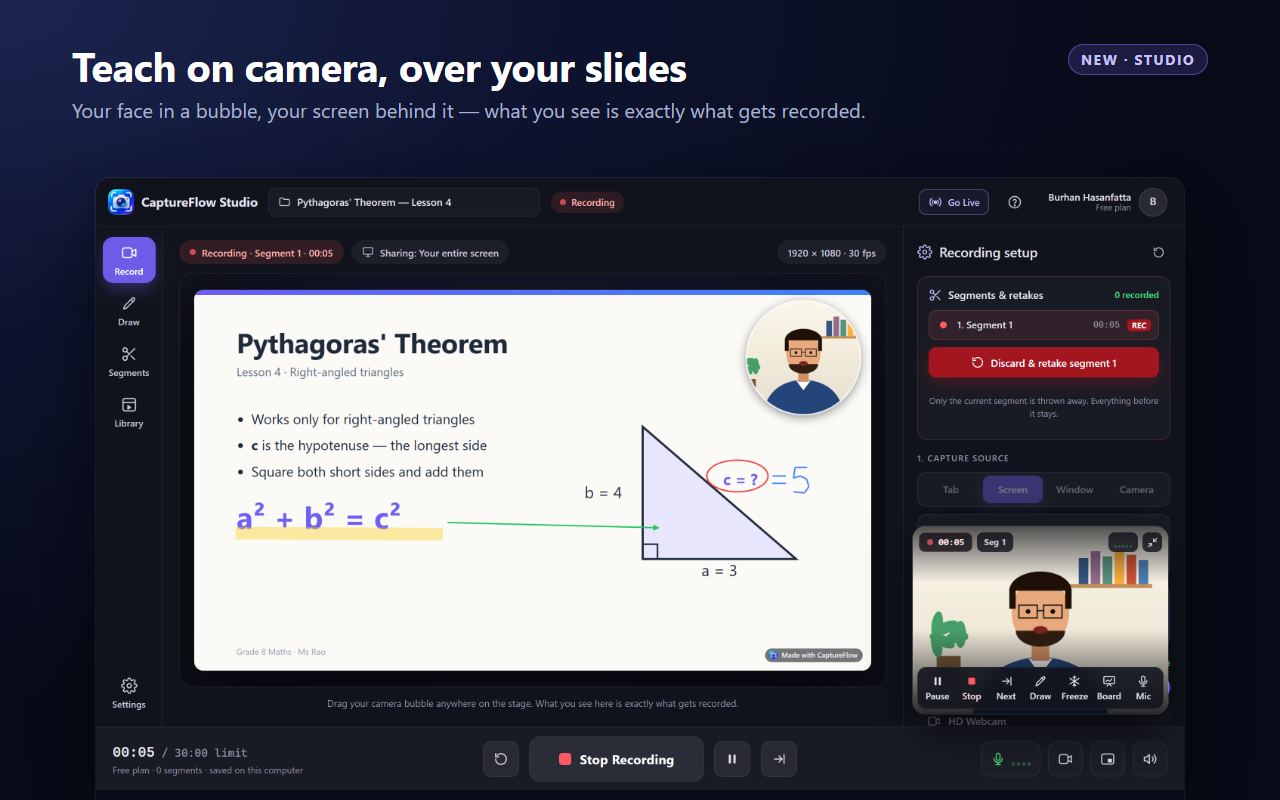
A round, rounded or square camera bubble you can drag and resize, a side-by-side layout, or full-frame camera for a talking-head lesson.
Take the shot, record it, teach with it, ship it. CaptureFlow covers all of it without a single round-trip to another app.
Open Studio from the popup and record a complete lesson: your screen, your face and your drawings in one video, recorded in parts so a mistake never costs you the whole take.
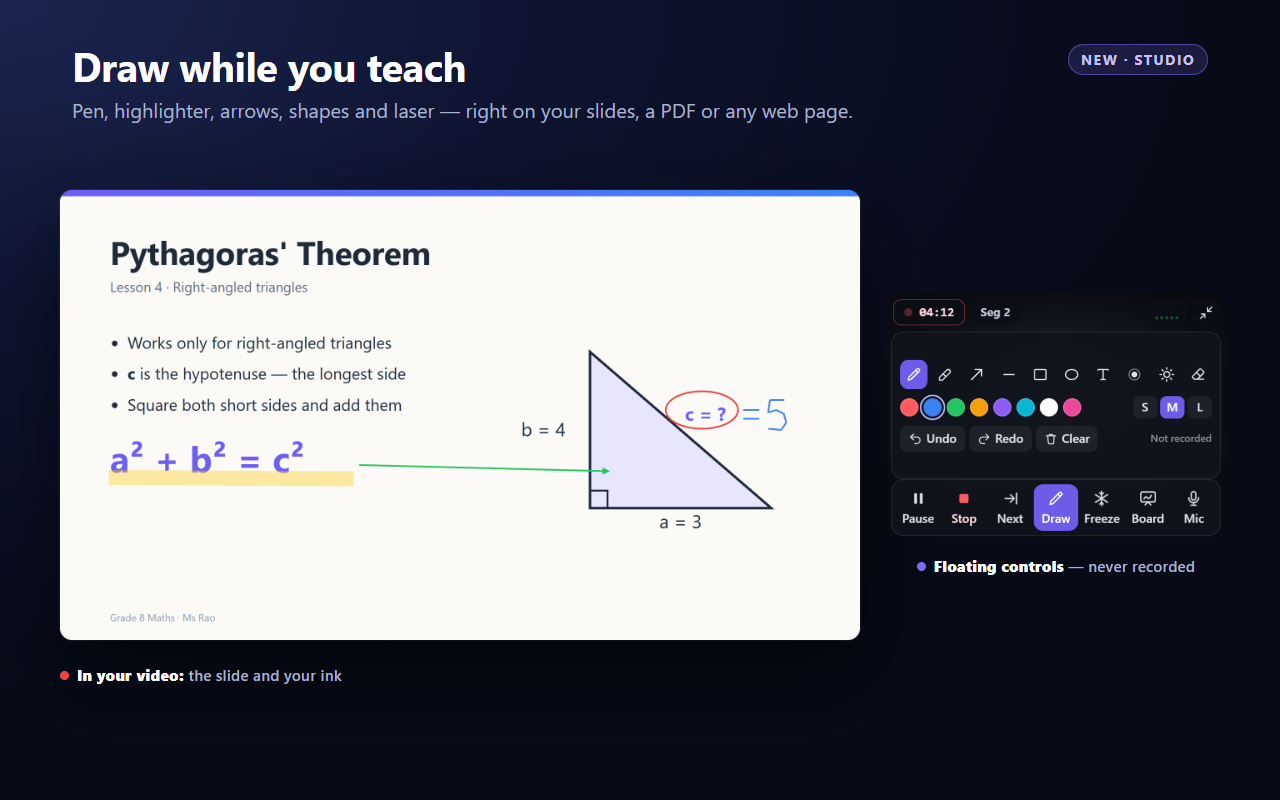
The pens, colours and buttons live in a small floating window that sits on top of everything but is never captured. Your class sees the slide and your ink — not the toolbar.
A round, rounded or square camera bubble you can drag and resize, a side-by-side layout, or full-frame camera for a talking-head lesson.
Pen, highlighter, arrow, line, rectangle, ellipse, text, laser pointer and spotlight — on Google Slides, a PDF or any web page.
Freeze holds your screen still so you can annotate anything — even apps outside Chrome. The whiteboard gives you a blank page to work on.
Every lesson is a list of segments. Redo the one you stumbled on, drag segments into a new order, and keep the rest exactly as it was.
Export one finished file that plays everywhere and uploads to YouTube as-is. Or press upload and copy a share link for your class.
Lessons are kept in your own browser, so you can close Chrome and carry on next week. Nothing is uploaded unless you ask.
Whatever you need to show — a single button, a modal that only appears on hover, or a 12,000-pixel-tall landing page — there is a capture mode for it.
Exactly what is on your screen right now. Respects device pixel ratio, so a 150%-scaled Windows display still produces a sharp, correctly sized image.
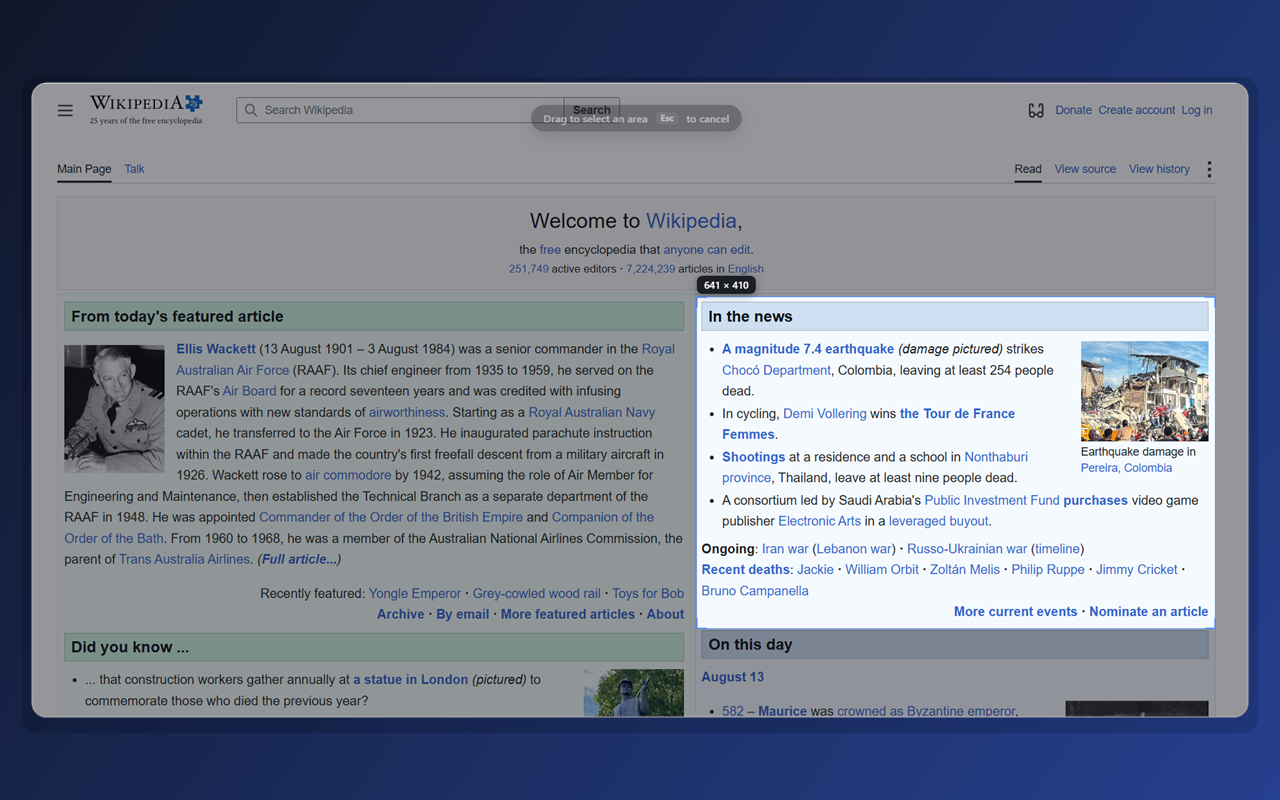
The page dims, you drag a rectangle, and a live width × height label tracks the selection. Release to capture and crop in one motion.
CaptureFlow measures the document, scrolls one viewport at a time, waits for lazy-loaded images, hides sticky headers after the first frame, and stitches everything into a single tall image.
A visible countdown before the shutter, so you can open a dropdown, hold a hover state, or focus a tooltip that would otherwise vanish the moment you click away.
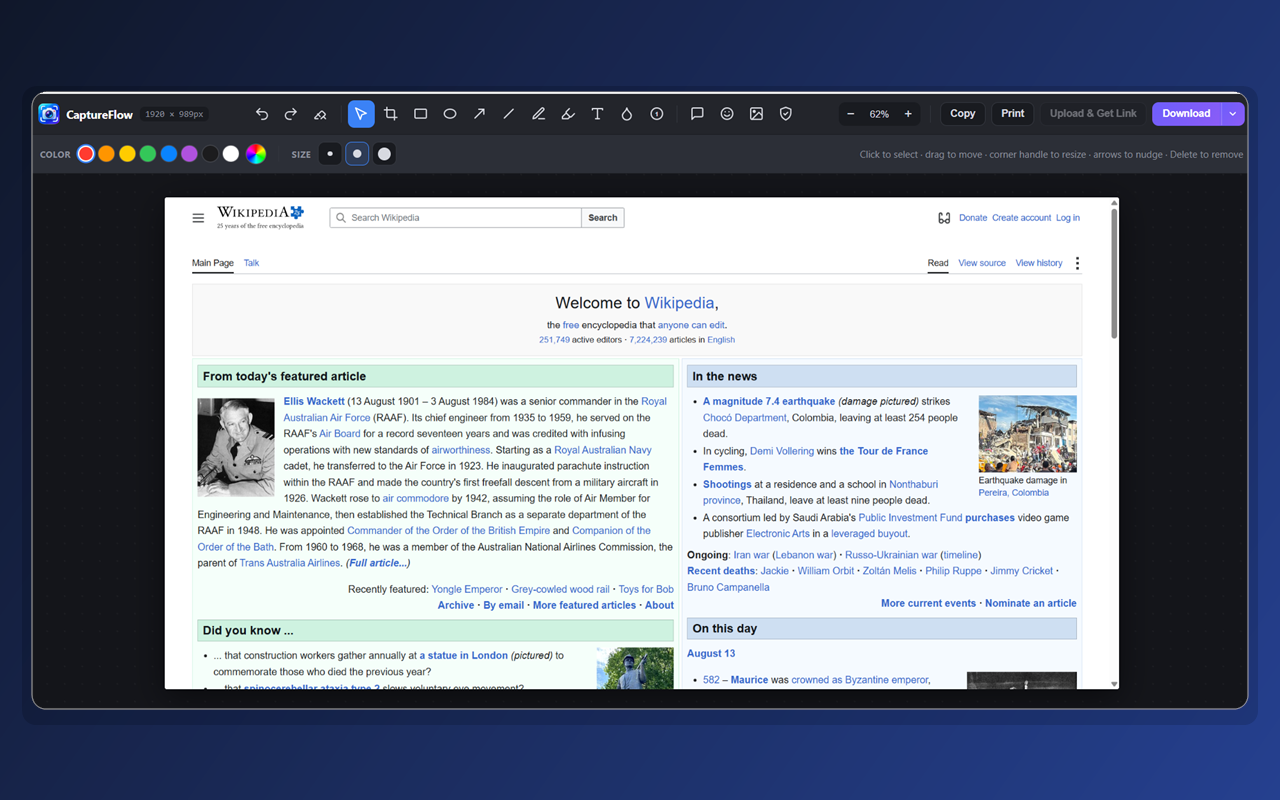
The editor opens in its own tab with your capture already loaded. Everything you draw stays an editable object until export — select it, drag it, resize it from the corner handles, nudge it with the arrow keys, or hit Delete.
Different destinations want different files. CaptureFlow shows you the size before you commit.
PNG, JPG or WebP. Presets for Original, Full HD, HD and SD, with a live file-size estimate as you change them.
Straight onto the clipboard as a real image. Paste into Slack, Jira, Notion, Figma, Word or an email without touching your disk.
One click into the browser print dialog, correctly scaled to the page — handy for physical sign-off and paper trails.
Push the capture to your CaptureFlow cloud and get a short share link copied to your clipboard automatically.
Some bugs only make sense in motion. Pick a source from the Record tab, press start, and get a share link or a download when you stop.
Video plus tab audio, captured without a screen-share prompt. Switch tabs and the recording keeps following the one you started.
Record anything on your machine, not just the browser — with system audio and your microphone mixed in.
Drag a box and record just that part of the page, or record your camera on its own. For your face over your screen, use Studio.
Narrate as you go. Mic and system audio toggle independently, and denial of permission fails with a clear message rather than a silent dead end.
A floating control bar with an elapsed timer. Pause to collect your thoughts; the result is still one clean, continuous file.
When you stop, a preview opens: play it back, download the WebM, or upload it and copy a share link. Studio exports MP4 too.
Upload a capture and get a short captureflow.pro/s/… link copied to your clipboard. The person on the other end just clicks — no app, no account, no 40 MB download.
Short, clean, and copied to your clipboard the moment the upload finishes.
All of them are remappable at chrome://extensions/shortcuts if they clash with something else.
Screenshots and the full annotation editor cost nothing and need no account. Recording, share links and 30-minute Studio lessons are free with a Google sign-in.